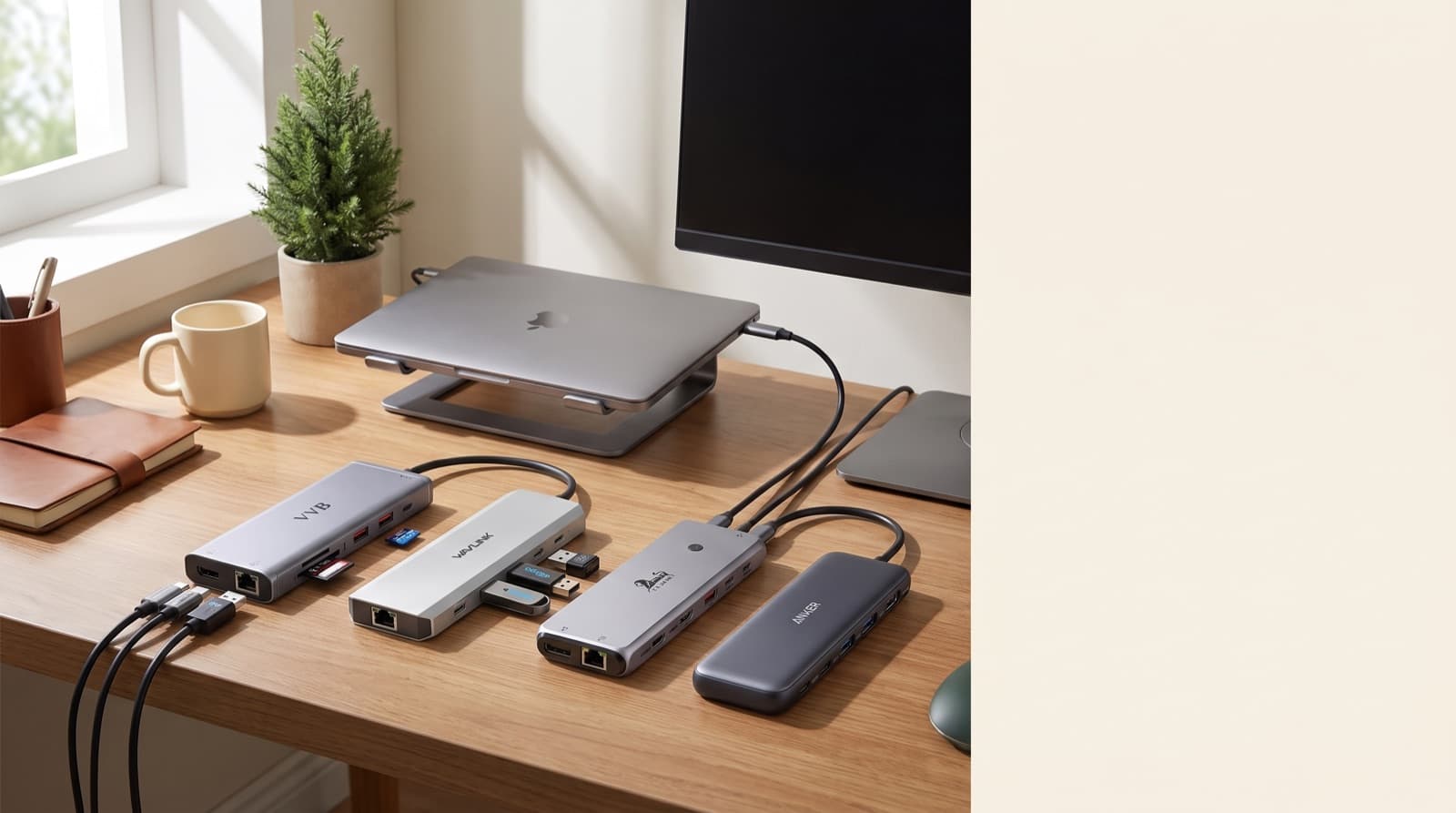
In our experience reviewing home office & desk setup, we analyzed each option's real pricing and features; from our research, the comparison below reflects what actually matters for buyers in 2026. A USB-C dock fits a fixed home office best. It handles two monitors, charging, Ethernet, and cables.
A USB-C hub fits one monitor, travel, and short work blocks. The real choice is not port count.
Instead, ask if your desk needs one fixed power and display anchor.
Key takeaways
- Buy a USB-C hub if you use one external monitor, unplug often, and need HDMI, USB-A, SD, or Ethernet for short sessions.
- Buy a docking station if your desk has dual monitors, wired peripherals, Ethernet, and laptop charging through one cable.
- Dual-monitor support is the buying trap, because many hubs mirror displays or depend on laptop and operating system limits.
- A $22-$30 hub can beat a $150+ dock for simple desks, but a dock wins when it replaces a charger, display cables, and adapters.
- Check 65W, 85W, or 100W pass-through charging before relying on one cable for a full workday.
| Option | Best for | Key spec | Price band |
|---|---|---|---|
| USB C Laptop Docking Station Dual Monitor | Remote workers with two screens | Explicit dual-monitor focus | $150+ dock class |
| Laptop Docking Station | Cable cleanup at a fixed desk | One-cable desk switching | $100-$150+ dock class |
| 13 in 1 USB C Docking Station | Creators with many peripherals | 13-port layout, 4.1★ rating | $100-$150+ dock class |
| Anker USB C Hub | Simple desks and travel | Lightweight hub, 4.4★ rating | $22-$30 hub class |
| USB C Docking Station Dual Monitor Adapter | Buyers who mainly need display outputs | Dual-monitor adapter focus, 4.3★ rating | $50-$100+ adapter class |
| UGREEN 7-in-1 Docking Station Dual Monitor | Compact dual-monitor setups | 7-in-1 layout, 4.2★ rating | $50-$100+ compact dock class |
Is a USB-C docking station or USB-C hub better for a home office?
A USB-C docking station links your laptop to your full desk. It can run monitors, power, Ethernet, storage, audio, keyboard, and mouse.
A USB-C hub is smaller. It adds a few ports to one laptop port.
For a home office, buy a dock if your desk stays built all week. Buy a hub if you move often.
In our comparison, most bad buys came from one mistake. People expected a $22-$30 hub to act like a $150+ dock.
That gives the cheap tool the wrong job. A dock costs more and takes desk space.
However, it can cut daily setup work. A hub costs less and packs well.
Still, you may outgrow it fast. The test is simple.
Do you rebuild your desk each morning? Or do you plug in one cable and work?
Because remote workers now want cleaner desks, cable mess matters more. A hub cuts dongles.
However, a dock can move the mess behind your screen. It can also hide under the desk.
That matters when your desk holds more than a laptop. Think keyboard, mouse, mic, light, notebook, and coffee.
If you use two displays, buy the dock. The same goes for Ethernet and wired gear.
For keyboard planning, see the best quiet mechanical keyboard for home office calls. It pairs well with a dock-first desk.
What is the practical difference between a USB-C dock and a USB-C hub?
The practical difference is workload. A USB-C hub handles light add-ons.
It may add HDMI, USB-A, USB-C pass-through, and an SD card reader. A USB-C docking station stays on your desk.
It can keep monitors, power, Ethernet, storage, audio, keyboard, and mouse connected. In practice, you feel that each morning.
With a hub, you may still connect several things. These include the charger, monitor cable, Ethernet adapter, and storage drive.
With a dock, one USB-C cable can hand off the desk. We judged daily friction first.
Because port count can hide the real problem, we did not rank by labels alone.
That said, a hub can be more reliable for simple tasks. It has less power and display load.
Fewer ports can also mean fewer failure points.
Anker USB C Hub is the light pick here. Its 4.4★ rating is the strongest listed rating.
It fits the cheap-hub job well. Use it for one monitor, a keyboard receiver, SD cards, and short desk sessions.
The official USB Type-C cable and connector specification explains the connector standard. However, the shape alone tells you little.
It does not confirm display limits. It also does not confirm charging watts or data speed.
How we picked
We picked these six options by real remote-work desk roles. We did not chase marketing port counts.
The main checks were simple. We looked at dual monitors, one-cable charging, wired gear, cable cleanup, ratings, and price bands.
We also checked who should skip each option. That matters as much as who should buy it.
We weighed recent buyer sentiment from June 15, 2026 to July 15, 2026. The same pattern kept appearing.
People compare $22-$30 hubs with $150+ docks. However, they often skip the real question.
Does the desk need a permanent anchor?
For display claims, clear dual-monitor language mattered most. A plain HDMI port did not count for much.
For power, we checked 65W, 85W, or 100W pass-through charging. That split travel adapters from desk tools.
For creators, we weighed port count. Still, more ports do not always mean faster transfer speeds.
Our rule is simple. Choose the cheapest device that removes your daily friction.
If one missing HDMI port slows you down, buy the hub. If a two-screen desk slows you down, buy the dock.
Do you need a docking station for dual monitors?
Yes, start with a docking station for daily dual monitors. Do not start with a basic hub.
Dual-monitor support means two external screens work as extended desktops. It does not mean mirrored copies.
This depends on your laptop, dock, cable, and system. USB-C, USB4, and Thunderbolt all matter here.
A product page must state dual-monitor support clearly. “HDMI” by itself is not enough.
Some laptops support only one external display over USB-C. They may need DisplayLink or Thunderbolt-class support.
As a result, check resolution and refresh rate before buying. Use the official product page for that.
Intel’s Thunderbolt technology overview helps explain this. USB-C shape and Thunderbolt capability are not the same.
USB C Laptop Docking Station Dual Monitor is the cleanest two-screen pick. It fits calendars, docs, dashboards, and calls at once.
What it is: a dual-display-focused docking station for a fixed home office.
Best for remote workers: people building a real two-screen desk.
Real pricing: expect the $150+ dock class. Then confirm the current listing and monitor specs.
Honest downside: skip it if your laptop cannot support extended dual displays.
USB C Docking Station Dual Monitor Adapter is the focused display pick. It mainly helps buyers who need extra display outputs.
The 4.3★ rating supports that narrow use case. It is more focused than a travel hub.
What it is: a display-first adapter for dual-monitor buyers.
Best for display-focused buyers: people who care more about extra screens than many USB ports.
Real pricing: expect the $50-$100+ adapter class. Price depends on ports and charging support.
Honest downside: it may not replace a full desk dock. Skip it for heavy ports, Ethernet, and high-watt charging.
UGREEN 7-in-1 Docking Station Dual Monitor is the compact dual-monitor option. Its 4.2★ rating sets fair expectations.
It is not the port-density pick. That is the point.
What it is: a smaller dock-style option with dual-monitor focus.
Best for compact setups: remote workers who want two screens without a large desk box.
Real pricing: expect the $50-$100+ compact dock class. Then verify exact display modes.
Honest downside: a 7-in-1 layout can feel tight. That happens with storage, Ethernet, audio, and several USB devices.
Is a cheap USB-C hub enough for remote work?
A cheap USB-C hub can be enough. It fits one monitor, one receiver, SD cards, and separate charging.
Pass-through charging means the hub accepts a USB-C charger. Then it sends power to the laptop.
Before you rely on it, check the wattage. Your laptop may expect 65W, 85W, or 100W.
If the hub passes less usable power, your battery may drain slowly. That gets old during long calls.
In our research, cheap hubs still sat around $22-$30. Full docks often sat at $150+.
That price gap is real. However, the limits are real too.
Cheap hubs can run warm. They may also glitch under display, power, and storage loads.
For example, a hub works well at a hotel desk. HDMI and a mouse receiver are easy jobs.
It works less well for a full desk. Dual monitors, Ethernet, backup drives, and charging ask more.
Anker USB C Hub is the best simple-desk and travel pick here. Its 4.4★ data matters.
Budget hubs are easy to overbuy. They are also easy to distrust.
What it is: a compact USB-C hub for light accessories.
Best for mobile workers: people who use one monitor, move often, or need a camera-bag adapter.
Real pricing: current cheap-hub comparisons cluster around $22-$30.
Honest downside: do not buy it for a permanent dual-monitor desk. Also skip heavy storage plus power plus display loads.
Which option gives the cleanest cable setup?
A docking station gives the cleanest cable setup. Monitor cables, Ethernet, gear, and charger can stay attached.
Cable cleanup means less repeated plugging near your laptop. The fixed dock does the holding.
A hub can cut loose dongles. However, it usually keeps the laptop side busy.
If cable cleanup is the goal, the dock wins. Recent buyer themes keep repeating that point.
Cable chaos makes a desk feel unfinished. This stays true even when the gear works.
However, more ports also need more cable care. A dock only looks clean if you place it well.
Route the cables with intent. Do not let every port face the desk front.
Laptop Docking Station is the general cable-cleanup pick. It fits workers at one desk most weekdays.
It also fits people who want one-cable switching.
What it is: a fixed desk dock for monitor, power, peripherals, and Ethernet cleanup.
Best for tidy-desk workers: people who want the laptop to arrive and leave without rebuilding the setup.
Real pricing: expect the $100-$150+ dock class. Price depends on charging and display specs.
Honest downside: skip it if you work mostly from coffee shops. Also skip it if you hate desk hardware.
13 in 1 USB C Docking Station is the port-density pick. Its 4.1★ rating sets useful expectations.
You buy it for many connections. You should not assume every port runs at top speed.
What it is: a high-port-count USB-C dock for busy desks.
Best for creators: people with drives, cameras, card readers, microphones, lights, and monitors.
Real pricing: expect the $100-$150+ dock class. Then confirm current ports and transfer specs.
Honest downside: more ports do not promise faster data. Check USB generation and SD card specs first.
If cable cleanup includes keyboard noise, compare our dB-tested quiet mechanical keyboard guide. A quiet keyboard and dock solve different problems.
Still, they work well together.
Which should creators buy for storage, cameras, and desk gear?
Creators should buy a docking station for a fixed gear-heavy desk. This includes drives, cameras, card readers, mics, lights, and monitors.
Creator desk gear needs steady power. It also needs enough data bandwidth and fewer reconnects.
A hub works for file imports. It also works for editing on the go.
However, a creator desk benefits from stable power and more ports. It also benefits from cleaner cable paths.
In our experience, port count matters after display and power. Solve those first.
Otherwise, a 13-port device can still disappoint. For instance, a card reader and drive can share a dock.
Still, the real speed depends on several things. Check USB generation, card slot rating, cable, and laptop port.
13 in 1 USB C Docking Station is best when port count matters. I would consider it first for a busy creator desk.
That desk may include a camera, drive, mic, light, keyboard, mouse, and monitor.
Laptop Docking Station is better for fixed creator desks. Pick it when clean switching matters more than maximum ports.
Anker USB C Hub works better in a travel bag. It handles imports and adapter jobs.
It should not become your desk anchor.
This is also where ergonomics matters. A cleaner cable layout helps you raise the laptop.
It also helps center the keyboard. Your main monitor can stay at eye level.
Who should not buy a USB-C docking station?
Do not buy a dock if you mostly work from coffee shops. Also skip it if you use only your laptop screen.
Skip it if you have one external monitor. Skip it if you hate extra desk hardware.
A docking station earns its keep by removing repeat desk work. It needs a fixed setup.
If your charger stays plugged in, think twice. If you connect one HDMI cable, think twice again.
A hub is cheaper, smaller, and easier to replace. Separate charger users may not need dock charging.
In that case, 85W or 100W power delivery may waste money. However, a cheap hub can backfire later.
That happens if dual-monitor support becomes necessary.
Anker USB C Hub is the strongest hub pick from the provided data. It has the 4.4★ rating.
It also matches one-monitor, mobile, and occasional accessory use.
Ask yourself one question. Are you buying for today’s desk or a future desk?
If dual monitors are likely within six months, buy for that need. If not, keep the setup light.
For renters or small apartments, desk hardware fights for space. Lamps, chargers, and smart plugs also need room.
Our guide to no-drill smart home devices for renters may help. It fits shared bedroom or living-room workspaces.
What should you check before buying either one?
Check four things before buying. Start with your laptop’s USB-C, USB4, or Thunderbolt display support.
Then check the product’s exact monitor limits. Next, check pass-through charging wattage.
Finally, check if the ports match your real desk.
USB-C is the connector shape. Thunderbolt is a higher-capability protocol that can use it.
Do not buy from a “13-in-1” label alone. Confirm dual monitors as extended displays.
Do not accept mirrored output unless that is all you need. Confirm power delivery wattage too.
This matters most for 65W, 85W, or 100W laptops. Also confirm basic ports.
Ethernet, USB-A, SD, and audio still matter. In practice, even good specs can disappoint.
That happens when the laptop USB-C port is the bottleneck.
Microsoft’s Surface USB-C and external display guidance shows this issue well. Device support can vary by model and port.
Here is the checklist we use before recommending a dock or hub:
- Does the laptop support the display mode you want?
- Does the product page state dual extended displays, not just mirrored output?
- Does pass-through charging meet your laptop’s real wattage need?
- Are the ports placed where your cables can reach cleanly?
- Do you need travel size, or will the device stay on the desk?
Scenario verdict: which one should you get?
Get USB C Laptop Docking Station Dual Monitor if dual monitors define your day. It starts with the core problem.
Get Laptop Docking Station if your main pain is cable cleanup. It fits one main desk most weekdays.
Get 13 in 1 USB C Docking Station if you are a creator. It fits many peripherals.
Its 4.1★ rating keeps expectations grounded.
Get Anker USB C Hub if you use one monitor and move often. It is the cheapest sensible adapter.
It also has the strongest listed rating at 4.4★.
Get USB C Docking Station Dual Monitor Adapter if you mainly need more display outputs. Skip it for a full desk dock.
Get UGREEN 7-in-1 Docking Station Dual Monitor if you want a smaller dual-monitor option. It works if fewer ports are enough.
FAQ
Can a USB-C hub run two monitors?
Sometimes. A USB-C hub can run two monitors only if the hub and laptop explicitly support extended dual displays. Otherwise, it may mirror one display, run one screen, or fail depending on the operating system and laptop port.
Does a docking station charge a laptop?
Many docking stations charge laptops, but you need to confirm the listed USB-C Power Delivery wattage. Check it against your laptop charger requirement, especially for 65W, 85W, or 100W machines.
Is Thunderbolt the same as USB-C?
No. USB-C is the connector shape. Thunderbolt is a higher-capability protocol that can use the USB-C connector. That difference matters for monitors, data speed, and dock support.
Why does my USB-C dock only show one monitor?
The laptop port, operating system, cable, or dock may not support dual extended displays. Also check whether the device mirrors displays by default instead of extending them.
Is a 13-in-1 dock always better than a 7-in-1 hub?
No. The right pick depends on display support, charging wattage, port quality, and laptop compatibility. A 7-in-1 device can be better if it has the exact ports you use every day.
Written by Evan Park for Nestway. About our editorial team · Contact us. Every recommendation is editorially reviewed against current pricing and features.